 SugarSentry
24 hours with SugarSentry
Every hour of the day, watched.
From the school run to three in the morning, SugarSentry reads your child's Medtronic CareLink account and only interrupts you when it matters. Here is one ordinary day.
-
06:45
Morning routine
Coffee, and last night at a glance.
Before anyone is awake, you know how the night went and what today needs. No texting your child, no logging in anywhere.
Time in range, last 24 h%Reservoir age3 daysChange it tonightEmma's phone battery%Charge it before schoolPump battery% -
07:50
School run
Eyes on the road, number on the dash.
The reading sits on the CarPlay dashboard as a live card. It updates as new readings arrive and needs nothing from you.
Emma · 3 min6.8 ↗ -
10:30
On a computer
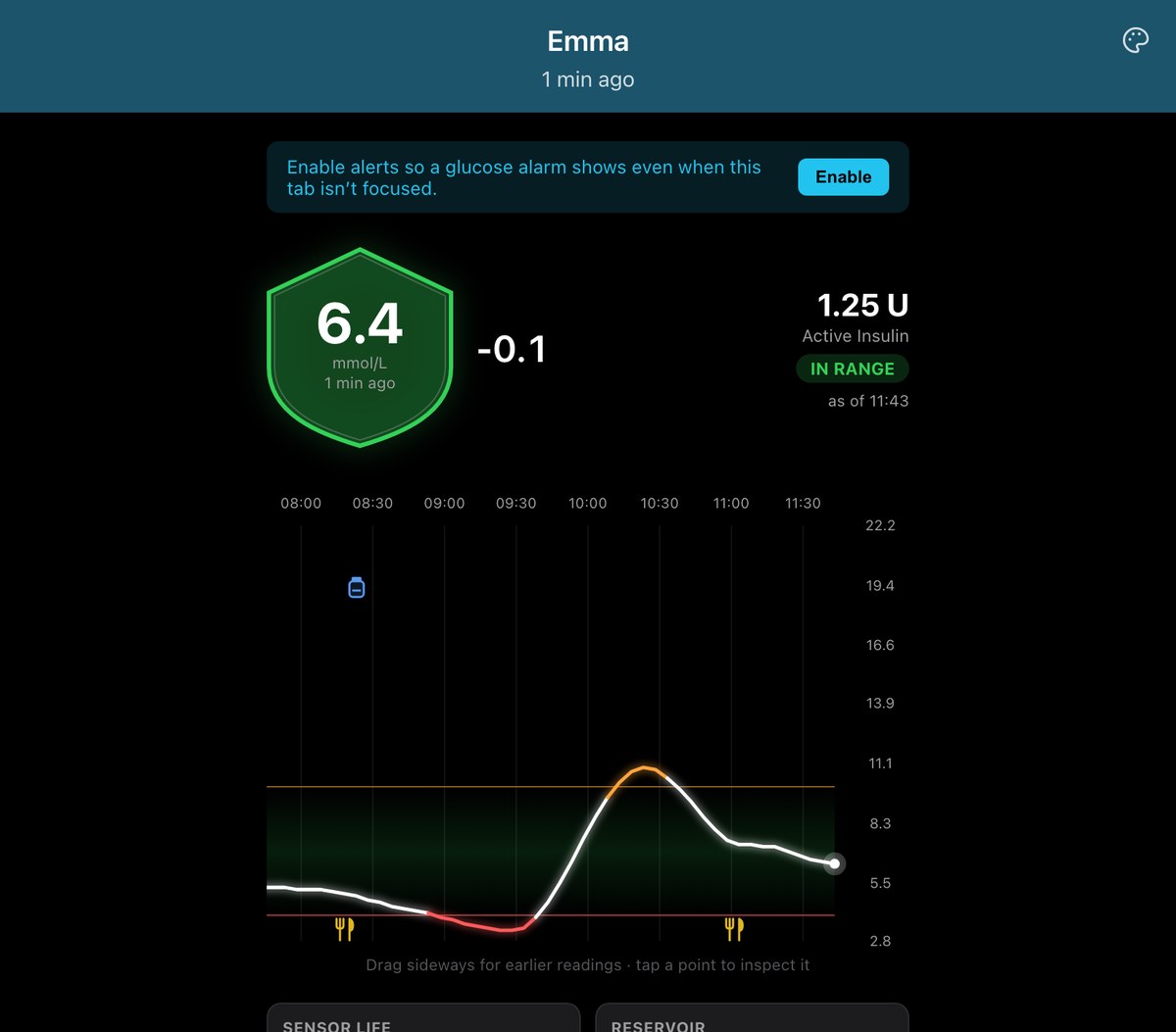
Grandma checks in from her laptop.
You sent her a private web link. It opens a live, read-only dashboard in any browser, with no app and no login. A new link switches the old one off at once.
-
12:20
Lunch
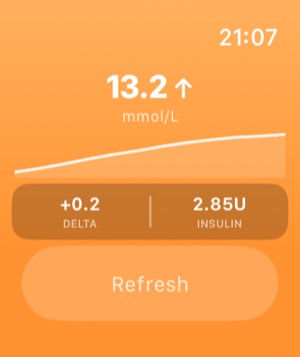
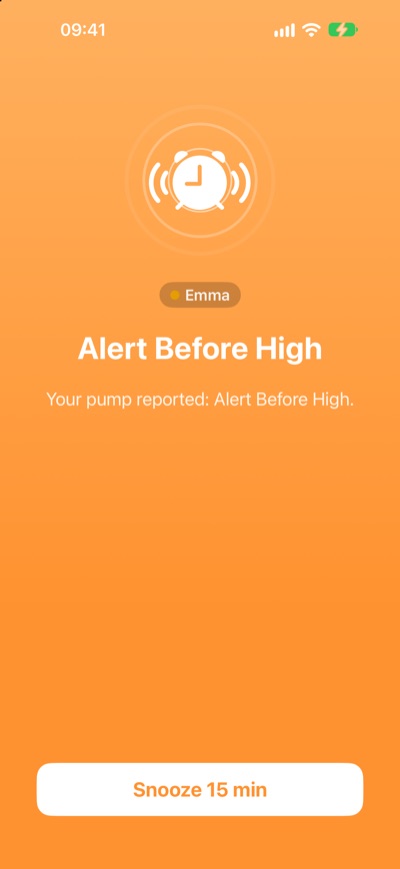
A tap on the wrist: rising.
The pump's Alert Before High comes through to your phone and Apple Watch. Orange means a heads-up rather than an emergency, so you know what it is before you read a word. It's lunch; you know why.
-
14:00
Afternoon meeting
You can't step out. Grandpa has Emma.
Silence All Alerts mutes Emma's alerts on your phone and on the server for as long as you choose: an hour, four hours, until 7:00, or until you switch it back. Use it only when someone else is watching. A red banner shows while it is on, and one tap brings her back.
Silence All AlertsEmma · 14:00 to 15:10Noah's alerts are not affected. -
16:10
Hands full
"Hey Siri, what's Emma's glucose?"
Shopping bags in both hands, Siri reads out the latest reading, or tells you plainly when there is no recent one.
Emma is 7.2 and steady. -
17:15
On the sideline
The number stays on the Lock Screen.
Noah's football practice. A live card on the Lock Screen and in the Dynamic Island shows Emma's number at a glance, and the phone goes back in your pocket. If no new reading arrives for 15 minutes, it shows -- rather than an old number.
Emma2 min6.4 →mmol/L · Lock Screen -
18:30
Two children
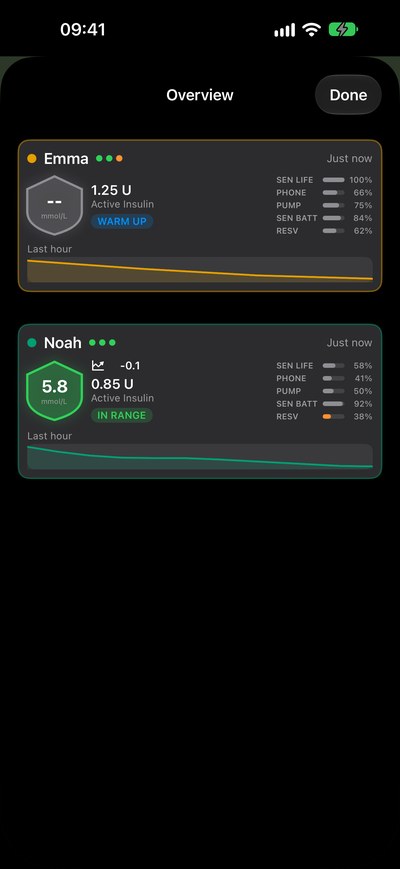
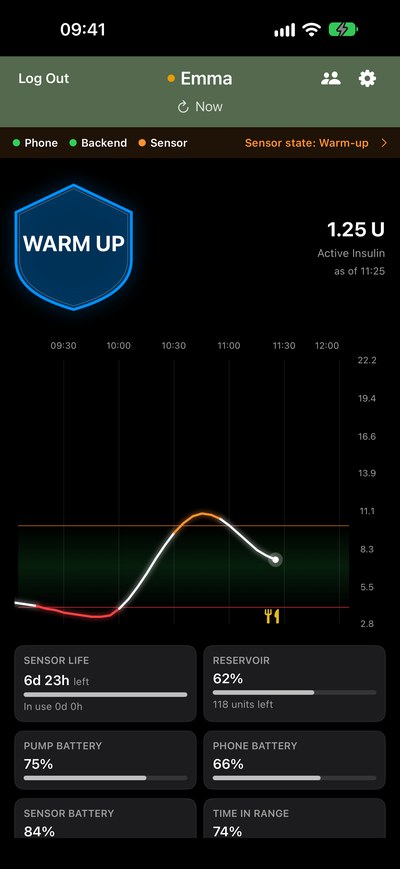
A new sensor for Emma. Noah, still in range.
Both children on one overview, each with their own CareLink login, name and colour. A new sensor shows WARM UP instead of a number until it gives readings.
-
20:30
Winding down
Classic CareLink by day. Night Ward by night.
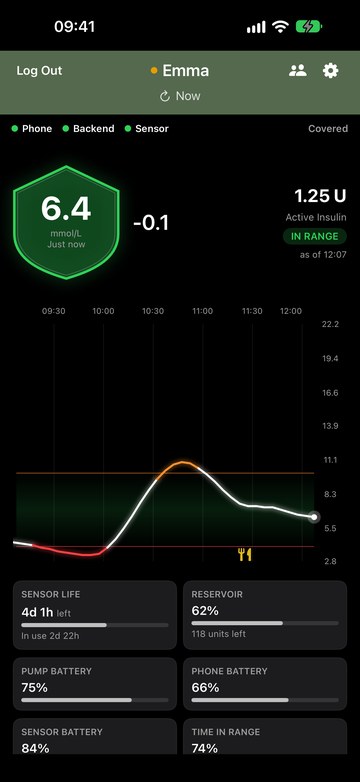
Nine skins, starting with Classic, modelled on the CareLink app you already know. Change the look whenever you like; alarm colours never change.
Classic CareLink 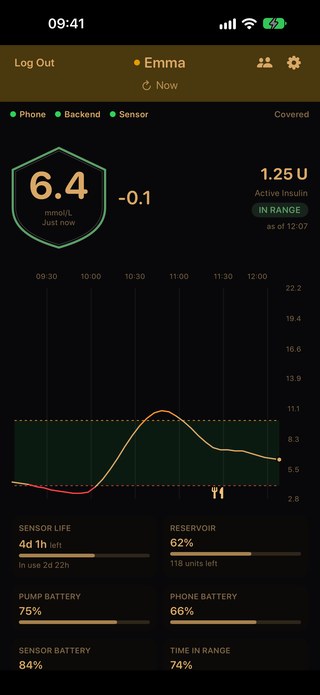
Night Ward 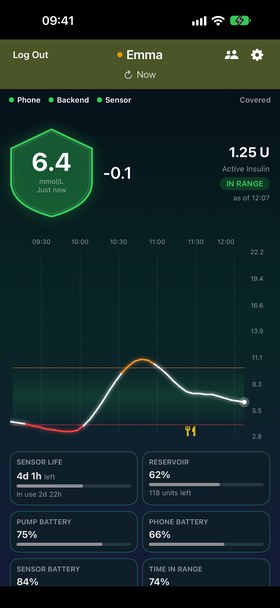
Aurora -
21:30
Lights out
SugarSentry stays open on the nightstand.
Last thing before sleep: SugarSentry open and in front, sound on, phone on the charger. Open, it checks for itself every few minutes, and an alarm takes over the screen with sound, even through the silent switch. The bedtime routine below has the whole list.
- Open, in front
- Sound on
- Charging
-
02:47
The one that matters
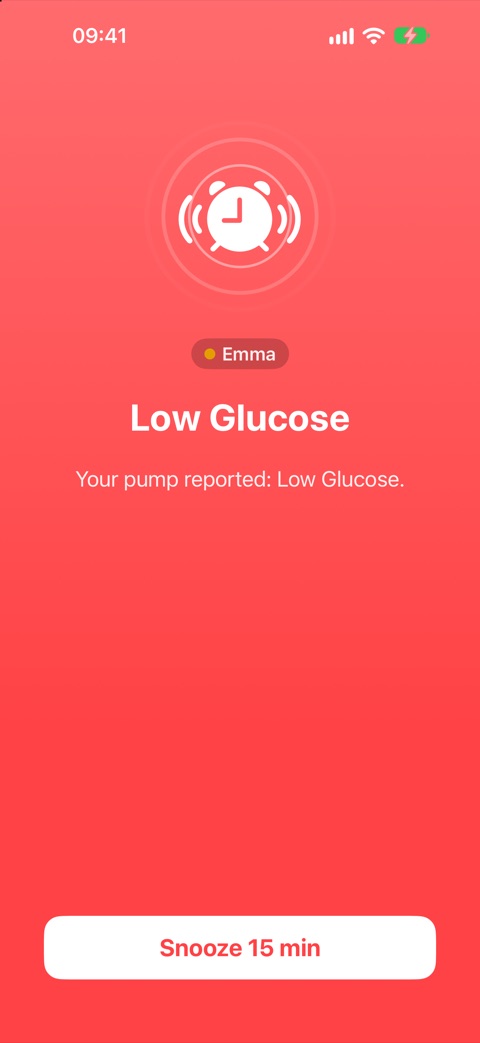
Low, falling. Your phone is on silent.
It rings anyway. A low is a Critical Alert, which sounds through silent mode and Do Not Disturb, and it keeps ringing every few seconds until someone taps Snooze.
-
02:49
Back to sleep
Snooze. Juice. Bed.
Snooze quiets Emma's alerts for 15 minutes. If she is still low after that, the alarm comes back. Then the day starts again at 06:45.
Getting started
Set up tonight, in five minutes.
- 1
Install SugarSentry
From the App Store, on an iPhone with iOS 26 or later.
- 2
Pick your CareLink region
Europe / Rest of world, or United States. The wrong one makes the sign-in fail.
- 3
Sign in with CareLink
On CareLink's own page. SugarSentry never sees your password.
- 4
Allow alerts
Notifications and Critical Alerts, then run a Test Alarm to hear it.
Keep your current app while you build confidence.
Use a separate CareLink login for each app. One login stays in the app you use today, the other goes into SugarSentry. Different logins don't collide, so neither app signs the other out.
- Create a new e-mail address.
- Create a CareLink account with it on the CareLink website, and start following your child.
- Log in to CareLink with your child's account and accept the follow request.
- Sign in to SugarSentry with the new login. Your other app keeps the old one.
Best practice
A bedtime routine for a peaceful night.
Two minutes before bed. It helps every diabetes app on your phone, not only SugarSentry.
- Close all apps on your iPhone except your diabetes apps.
- Turn silent mode off, and put the media and ringer volume to the maximum.
- Open SugarSentry and leave it in front.
- Plug in the charger, and check that the phone has started charging.
- Have a good night.
Every hour of the night, automatically.
In the Shortcuts app, set up a personal automation for each hour of the night that turns the volume up to the maximum, opens your diabetes apps and brings SugarSentry to the front. Use SugarSentry's Keep SugarSentry Current action rather than Open App, so an alarm on screen keeps its sound.
This is a precaution, to be sure, to be sure. SugarSentry keeps watching without it; the automation just makes certain nothing on the phone has quietly changed overnight.